Pairing HAYLOU S40 Headphones is usually straightforward, whether you use a phone, tablet, computer, or compatible television. Still, Bluetooth menus differ between devices, and the first connection can take a little patience. Keep the headphones charged and close to the device, ideally within arm’s reach. A crowded room can make wireless setup less predictable.
Put the headphones into pairing mode using the instructions for your specific model, then open Bluetooth settings on the device. Look for HAYLOU S40 in the available-device list and select it. If a confirmation prompt appears, follow the screen. That’s the basic connection. The exact button action and indicator behavior can vary, so check the user manual rather than guessing. Once paired, audio should route through the headphones, though some devices may need you to choose them as the output.
A failed first attempt does not necessarily mean anything is broken. Make sure the headphones are not already connected to another nearby device, then try again. Forgetting an old Bluetooth entry or restarting Bluetooth can sometimes clear a stubborn connection. Small annoyance, but common. This guide explains how to pair HAYLOU S40 Headphones with different device types and what to check when they do not appear. Bluetooth labels and menus change across operating systems, so your screen may not match every example exactly.
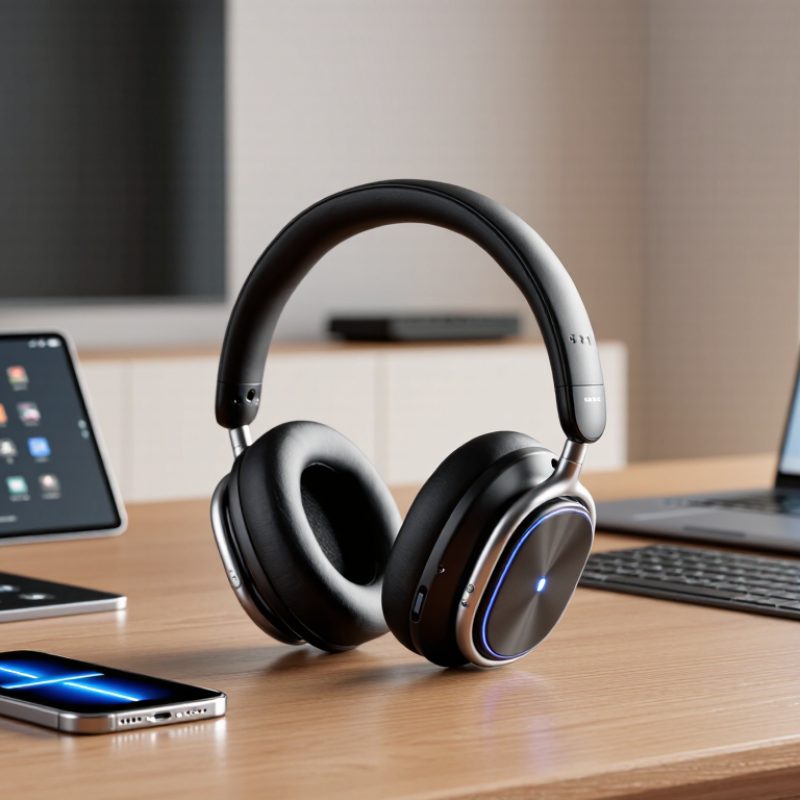
Before pairing, check the headphones’ battery and charging indicator. A low charge can interrupt setup or make a connection seem unreliable. Use a compatible cable and power source, then wait until the indicator signals a stable charge. Do not rely on a brief flash alone; indicator meanings vary between models. Disconnect the cable before entering pairing mode, unless the user guide says otherwise. Keep the headphones close to the device, with Bluetooth enabled and airplane mode turned off. Small oversight, common problem.
Bluetooth readiness matters because nearby saved devices can reconnect unexpectedly. Turn Bluetooth off on devices you are not using, or remove an old headphone entry if connection attempts keep failing. The Bluetooth SIG’s 2024 Market Update projects annual Bluetooth device shipments will reach 5.4 billion by 2028, reflecting how crowded everyday wireless environments have become. That figure is not a guarantee of interference, but it helps explain why a clean pairing setup is useful. If the headphones do not appear, switch them off, wait a few seconds, and activate pairing mode again. Check the manual for the correct indicator pattern rather than guessing. A little patience helps. It is easy to blame the battery when the headphones simply are not discoverable.
Pairing begins with a clean start. If the headphones are switched off, press and hold the power button until you hear a prompt or see the indicator change. On some units, pairing starts automatically the first time they are powered on. Keep the headphones close to your phone, tablet, or computer while they search. The exact light pattern can vary, so use the voice prompt or your device’s Bluetooth screen as the clearest guide.
Open Bluetooth settings on your device and wait for the headphone name to appear in the available devices list. Tap it once, then allow a few seconds for the connection to complete. If it does not appear, turn Bluetooth off and on again, or switch the headphones off and retry. Small detail: nearby devices can sometimes reconnect unexpectedly. Disconnect an existing connection before starting over. If the button response or indicator differs from these steps, check the supplied manual; guessing at long button presses may trigger another function. The process can feel fussy. That is normal.
To pair wireless headphones with a phone or tablet, charge them, then switch them on and hold the power button until the indicator flashes. That flashing light usually means pairing mode is active. Open the device’s Bluetooth settings, enable Bluetooth, and tap the headphones’ name when it appears. Wait for the connected status before playing audio. Small but useful check: make sure sound is routed to the headphones, not the phone speaker.
On a computer, open Bluetooth settings and choose the option to add a device. Select the headphones from the list, then check the computer’s sound output settings. Menu names differ between systems, and the first connection can take a moment. If the headphones do not appear, turn Bluetooth off and on, move the devices closer, and re-enter pairing mode. An old connection to another nearby device can also interfere. It happens.
The Bluetooth SIG’s 2024 Market Update forecasts 7.5 billion annual Bluetooth device shipments by 2028, reflecting how common wireless connections have become. Yet pairing still depends on clear steps and the right audio output setting. When switching between a tablet and computer, disconnect the existing connection if needed, then select the headphones again on the new device. The exact wording on screen may vary. Don’t assume a missing device is broken; pairing mode may simply have timed out.
To connect a second Bluetooth device, keep the headphones powered on and leave the first device connected. Put the headphones back into pairing mode using the power or multifunction button, then open Bluetooth settings on the second device. Select the headphones when they appear. A brief tone or a “connected” message usually confirms the link. Keep both devices nearby during setup.
If the headphones do not appear, switch Bluetooth off and on again on the second device, then retry pairing mode. Avoid choosing a similarly named device by mistake. Once paired, the headphones may reconnect to both devices when they are in range. Multipoint connections do not always play two audio streams at once; pause audio on one device before starting it on the other. Small detail, but useful.
If the first device disconnects while you pair the second, reconnect it from its Bluetooth settings after pairing is complete. Some phones also hold onto an old connection and block a fresh link, so removing the saved headphone entry can help. The menu names vary between devices. A little confusing, honestly. If the button response differs, check the headphone manual rather than holding buttons at random.
Put the headphones in pairing mode near your phone or computer, then open its Bluetooth settings and select the matching device entry. Keep the screens open until the status changes to connected. A blinking light often signals pairing mode, but indicator patterns can vary, so check the device guide if unsure. Keep it simple.
If pairing fails, confirm the headphones have charge and are not already connected to another nearby device. Switch Bluetooth off and on, then remove the old saved entry and pair again. Move other paired devices out of range. When audio stays silent, select the headphones as the output in your computer’s sound menu. If the connection drops, bring the devices closer and reconnect through Bluetooth settings. Restarting both devices can help, though it is not always the fix.
Tips: Charge before troubleshooting. Forget and re-pair only the matching entry. Try one change at a time and note what works; it can feel slow, but random resets make the cause harder to spot.
Follow the steps in order: power on the headphones, activate pairing mode, enable Bluetooth on your device, and select the headphones from the available devices list. For a previously paired device, check its saved Bluetooth list and reconnect. Pairing-mode controls can vary by model, so consult the device manual if needed. The numbers show sequence, not measured performance.
Check the battery indicator and charge them if needed. Wait for a stable signal, not just a brief flash.
Disconnect it first, unless the user guide says otherwise. Keep the headphones close to your device.
Turn them on and hold the power button until you hear a prompt or see the indicator change. Some units enter pairing mode automatically.
Open Bluetooth settings and wait for the headphones to appear in the available devices list. Tap the entry once.
Turn Bluetooth off and on again, then retry pairing mode. Check the manual for the correct indicator pattern.
A nearby saved device may reconnect. Turn off Bluetooth on devices you are not using, or remove an old headphone entry.
Switch the headphones off, wait a few seconds, and try again. Small detail, but it can help.
Check your device’s Bluetooth screen or listen for a voice prompt. Indicator meanings vary, so guessing can mislead you. It feels fussy.
Before pairing, make sure the HAYLOU S40 Headphones have enough battery and that Bluetooth is enabled on the device you want to use. Turn on the headphones and activate pairing mode, following the status light or sound cues to confirm they are ready. Open the Bluetooth settings on your phone, tablet, or computer, locate the headphones in the available-device list, and select them to complete the connection.
To use the headphones with a second Bluetooth device, start pairing mode again and choose them from that device’s Bluetooth settings. If pairing fails or the connection drops, check that the headphones are charged, keep the devices nearby, and confirm Bluetooth is active. You can also disconnect an unused device, restart Bluetooth, or repeat the pairing steps. Once connected, the headphones should reconnect to a previously paired device when both are ready and within range.